|
Step 1: Begin Update Script
The update script has been designed to reduce user input. It will:
- Check that OpenVPN is installed and up to date. If not, it will install/update the program (Windows 11 only)
- Generate a new VPN password
- Download the latest VPN profiles from Insite's servers and insert your credentials (no remembering another password!)
- Restarts OpenVPN.
The process takes around 3 minutes start to finish.
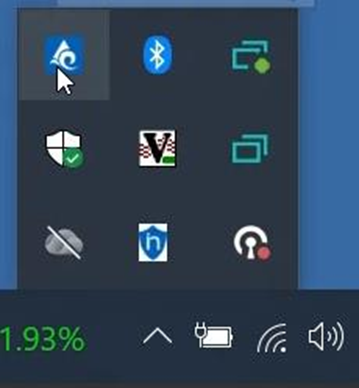
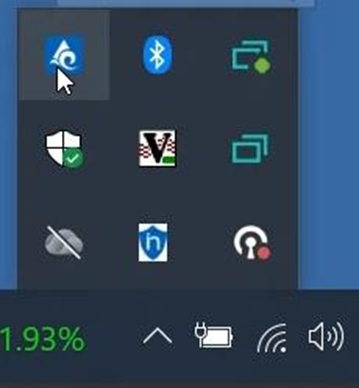
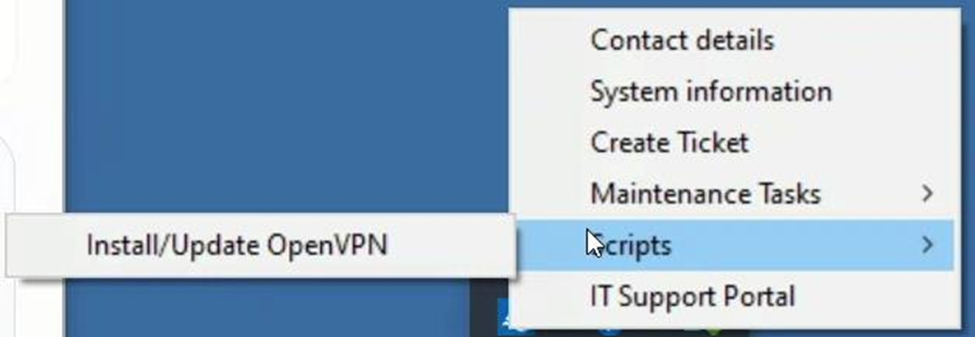
- Open the system tray and find the Insite Engagement Centers icon, right click it.
|
|
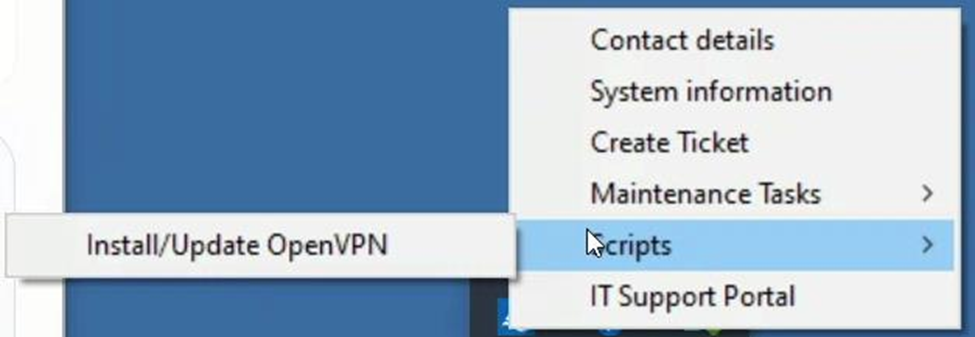
- Click Scripts then Install/Update OpenVPN
|
|
|
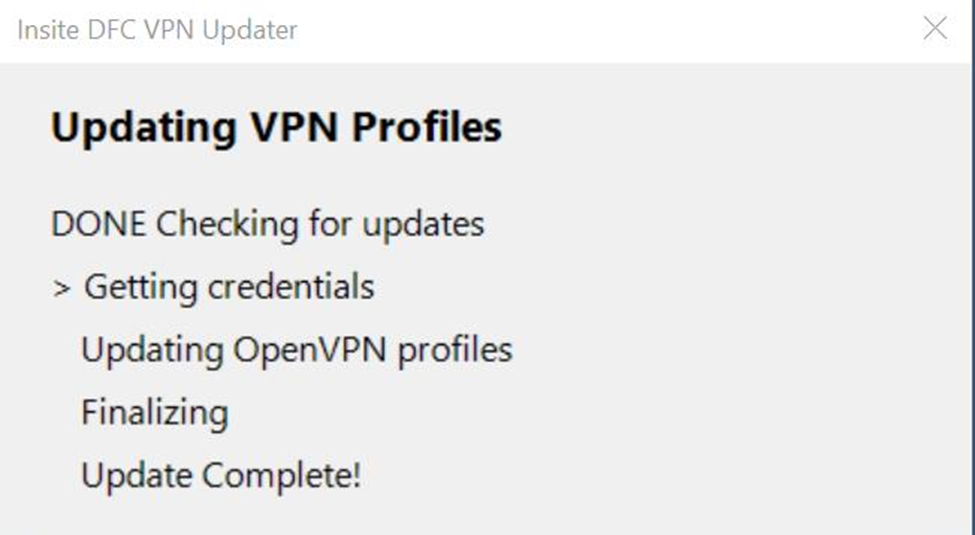
After a few seconds, you will see this box letting you know the process has started.
|

|
|
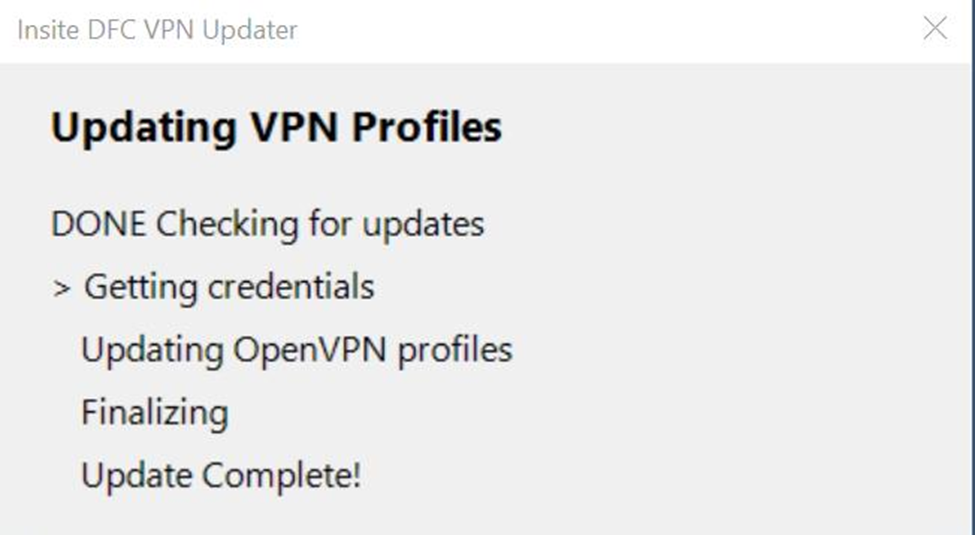
It may take up to 2 minutes for the system to process your request. Once started, you will see this screen
|
|
|