|
Step 1: AddBegin FoxpassUpdate Script
The update script has been designed to Microsoftreduce Authenticatoruser input. It will:
- Check that OpenVPN is installed and up to date. If not, it will install/update the program (Windows 11 only)
- Generate a new VPN password
- Download the latest VPN profiles from Insite's servers and insert your credentials (no remembering another password!)
- Restarts OpenVPN.
The process takes around 3 minutes start to finish.
Visit console.foxpass.com
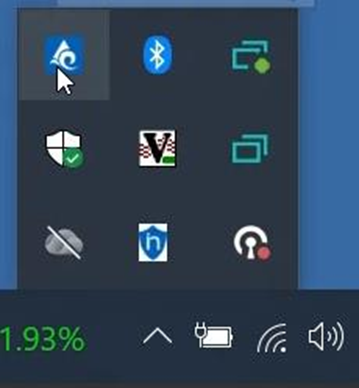
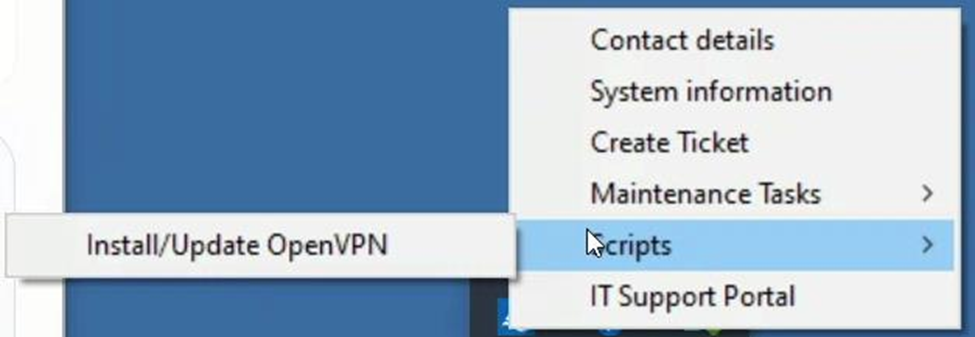
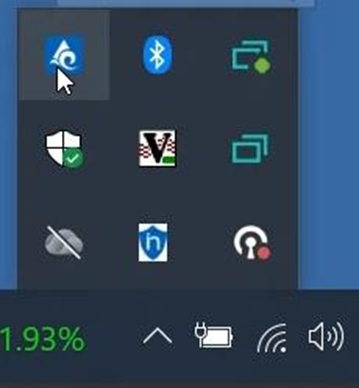
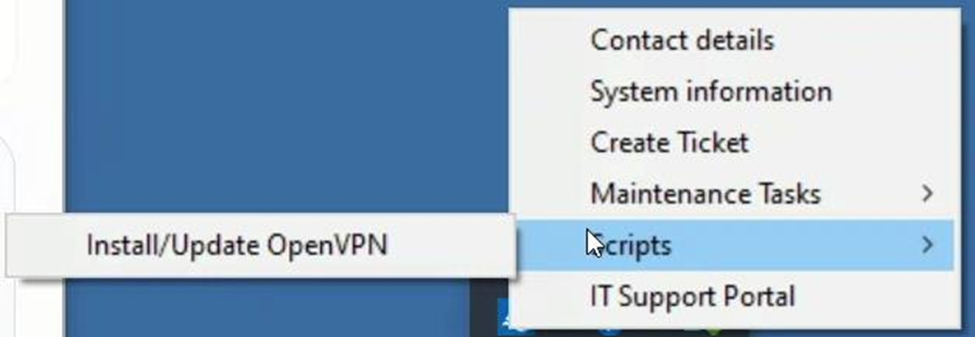
Enter callinsite.onmicrosoft.com inOpen the domainsystem name,tray and find the Insite Engagement Centers icon, right click continue
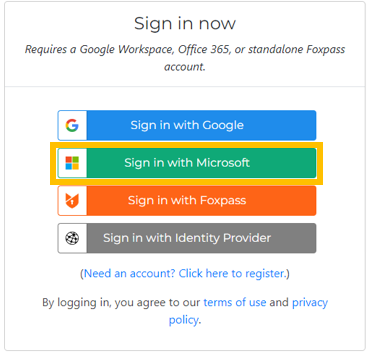
Click the green Sign in with Microsoft button. Using your CallInsite credentials, sign in.it.
|

|
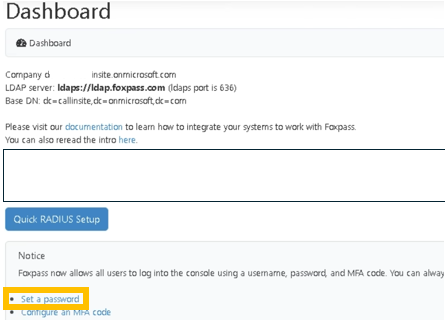
- Click
theScripts linkthen thatInstall/Update says “Set a Password"OpenVPN
|
|
|
|
|
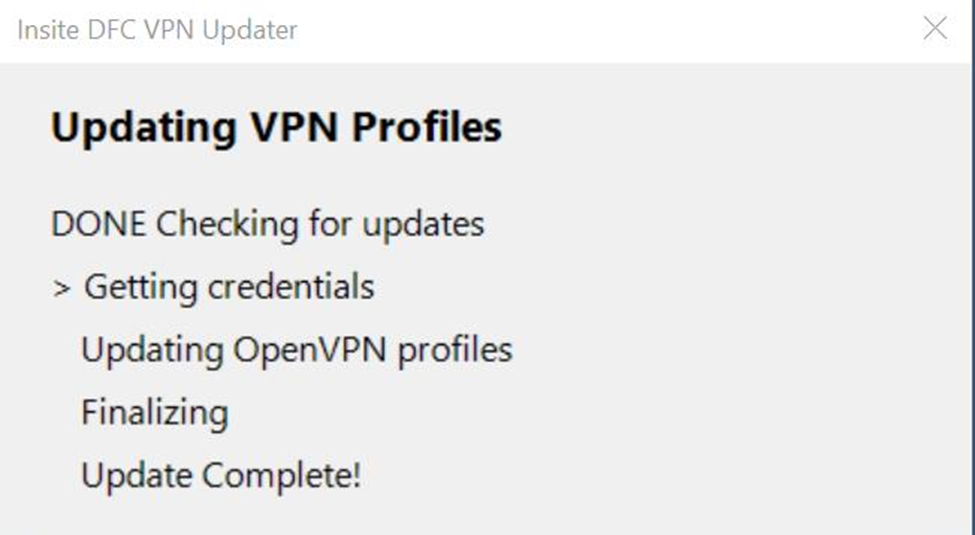
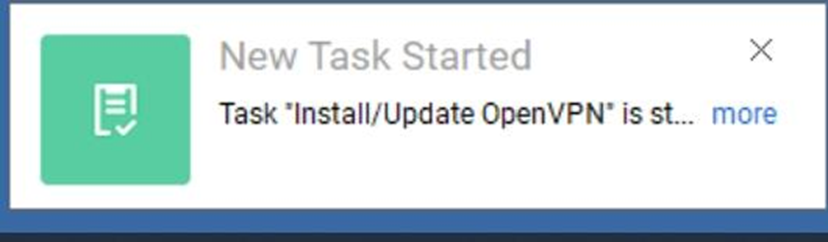
StepAfter 2:a Install/Configurefew OpenVPNseconds, Connect
you | will
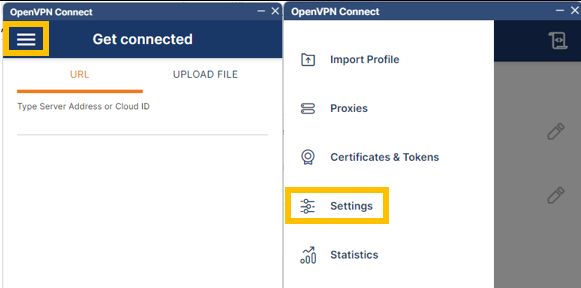
Launch Open VPN Connect.
OpenVPN Connect should already be installed on your computer. Look forsee this iconbox on your desktop:
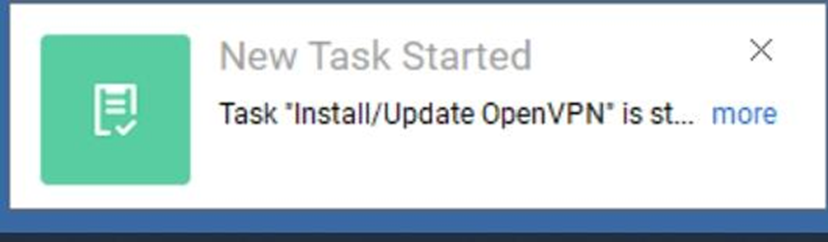
Ifletting you do not have it, click here to downloadknow the latestprocess version.has started.
|

|
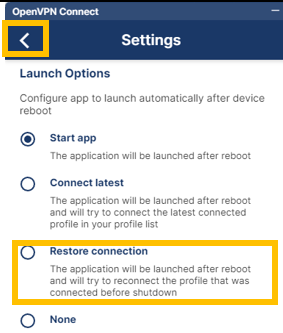
Scroll down to Launch Options and select Restore connection
|
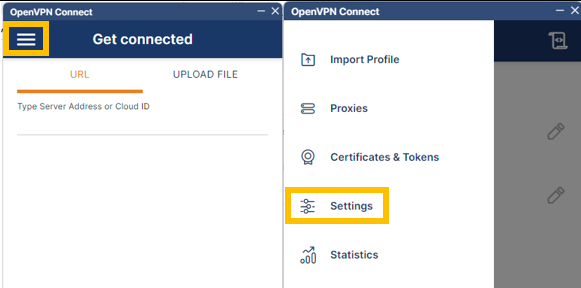 
|
It Scrollmay downtake up to Launch2 Optionsminutes and select Restore connection.
Pressfor the Leftsystem Arrowto whenprocess finished.
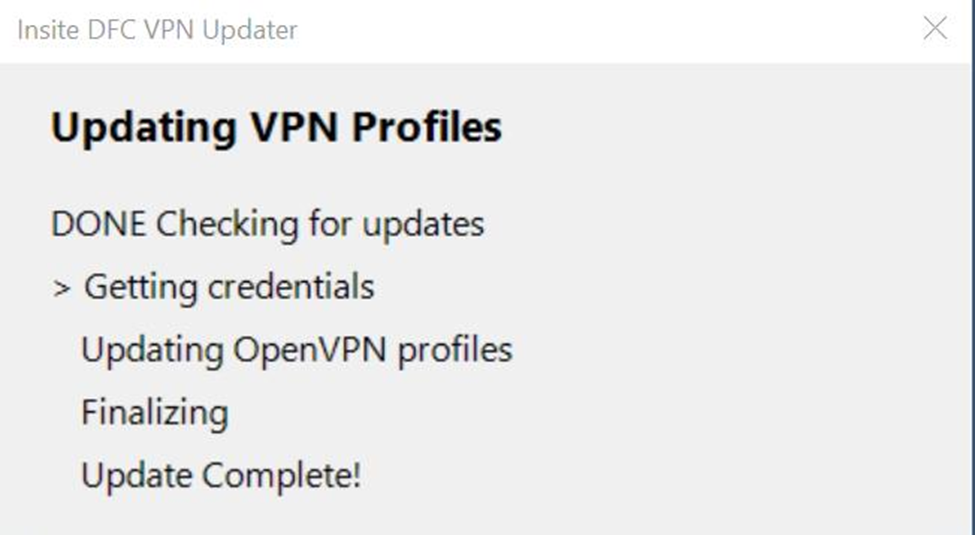
request. Once started, you will see this screen
|
|
|
|
Step 3: Download the VPN Profiles:
Download both VPN profiles:
|
|
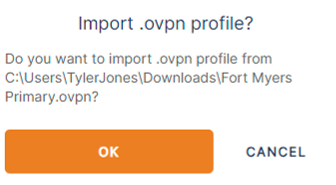
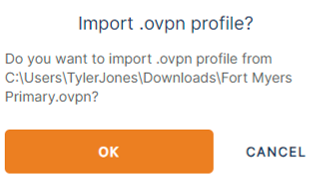
When prompted to Import the .ovpn profile, click OK.
|
|
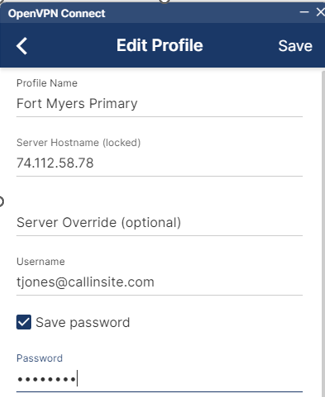
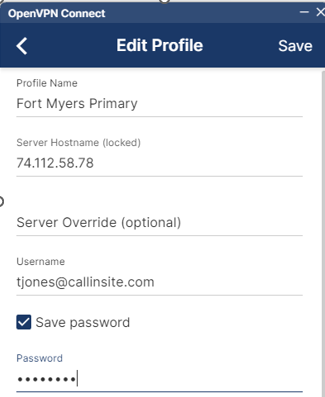
Type your complete CallInsite Email in the Username field, the password you created in step 1, and click CONNECT.
|
|
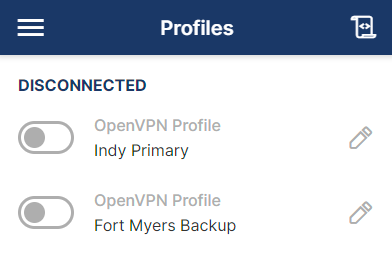
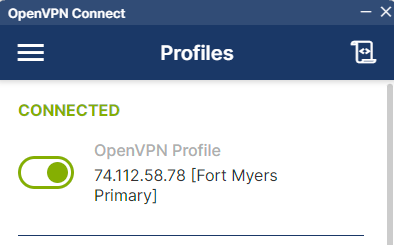
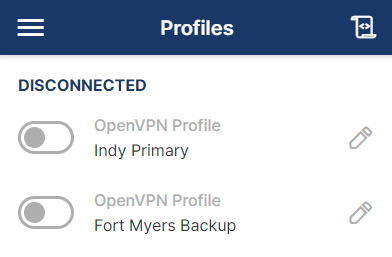
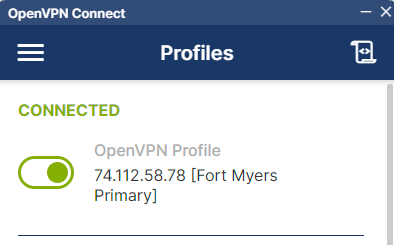
To connect to a network, toggle the switch.
|
|
To disconnect, click the green toggle
|
|
|