# Work From Home

Prior to being deployed to work from home, users should complete this speed test and submit the results to their supervisor.

# Speed Test Instructions

#### Prior to being deployed to work from home, users should complete this speed test and submit the results to their supervisor. 

Step one: Go to [https://getvoip.com/speed-test-tool/](https://getvoip.com/speed-test-tool/) and click “Start”.

[![image.png](http://kb.callinsite.com/uploads/images/gallery/2025-03/scaled-1680-/image.png)](http://kb.callinsite.com/uploads/images/gallery/2025-03/image.png)

Step 2: After the test completes, click the Copy button and send the URL to your supervisor

[![image.png](http://kb.callinsite.com/uploads/images/gallery/2025-03/scaled-1680-/x1vimage.png)](http://kb.callinsite.com/uploads/images/gallery/2025-03/x1vimage.png)

# Manually configuring OpenVPN

<table class="MsoTableGrid" id="bkmrk-step-1%3A-add-foxpass-" width="927"><tbody><tr><td valign="top">Step 1: Add Foxpass to Microsoft Authenticator

<table class="MsoTableGrid" width="912"><tbody><tr><td style="width: 248.5px;" valign="top">1. Visit [console.foxpass.com](https://console.foxpass.com/)
2. Enter callinsite.onmicrosoft.com in the domain name, click continue
3. Click the green Sign in with Microsoft button. Using your CallInsite credentials, sign in.

</td><td style="width: 572.5px;" valign="top">[![image.png](https://kb.callinsite.com/uploads/images/gallery/2025-11/scaled-1680-/image.png)](https://kb.callinsite.com/uploads/images/gallery/2025-11/image.png)

[![image.png](http://kb.callinsite.com/uploads/images/gallery/2025-03/scaled-1680-/7ZPimage.png)](http://kb.callinsite.com/uploads/images/gallery/2025-03/7ZPimage.png)

</td></tr><tr><td style="width: 248.5px;" valign="top">2. Click the link that says “Set a Password"

</td><td style="width: 572.5px;" valign="top">[![image.png](http://kb.callinsite.com/uploads/images/gallery/2025-03/scaled-1680-/ikMimage.png)](http://kb.callinsite.com/uploads/images/gallery/2025-03/ikMimage.png)

</td></tr></tbody></table>

</td></tr><tr><td valign="top"></td></tr><tr><td valign="top"><table class="MsoTableGrid" width="927"><tbody><tr><td valign="top">Step 2: Install/Configure OpenVPN Connect

</td></tr></tbody></table>

<table align="left" class="MsoTableGrid" width="886"><tbody><tr><td style="width: 246.5px;" valign="top">1. Launch Open VPN Connect.

OpenVPN Connect should already be installed on your computer. Look for this icon on your desktop:   
  
If you do not have it, [click here](https://openvpn.net/downloads/openvpn-connect-v3-windows.msi) to download the latest version.

</td><td style="width: 574.5px;" valign="top">[![image.png](http://kb.callinsite.com/uploads/images/gallery/2025-03/scaled-1680-/wTbimage.png)](http://kb.callinsite.com/uploads/images/gallery/2025-03/wTbimage.png)

  
</td></tr><tr><td style="width: 246.5px;" valign="top">2. Scroll down to Launch Options and select Restore connection

</td><td style="width: 574.5px;" valign="top">[![image.png](http://kb.callinsite.com/uploads/images/gallery/2025-03/scaled-1680-/FDfimage.png)](http://kb.callinsite.com/uploads/images/gallery/2025-03/FDfimage.png)

</td></tr><tr><td style="width: 246.5px;" valign="top">3. Scroll down to Launch Options and select Restore connection.  
      
    Press the Left Arrow when finished.

</td><td style="width: 574.5px;" valign="top">[![image.png](http://kb.callinsite.com/uploads/images/gallery/2025-03/scaled-1680-/bxeimage.png)](http://kb.callinsite.com/uploads/images/gallery/2025-03/bxeimage.png)

</td></tr></tbody></table>

</td></tr><tr><td valign="top"></td></tr><tr><td valign="top">Step 3: Download the VPN Profiles: <table class="MsoTableGrid" style="width: 100.122%;"><tbody><tr><td style="width: 29.5981%;" valign="top">1. Download both VPN profiles:

</td><td style="width: 70.4019%;" valign="top"><table border="1" cellpadding="1" cellspacing="1"><tbody><tr><td>All Agents:</td><td>[**Indy Primary**](https://2295524.fs1.hubspotusercontent-na1.net/hubfs/2295524/Employee%20Resources/IT%20Department/Indy%20Primary.ovpn)</td></tr><tr><td>  
</td><td>[**Fort Myers Backup**](https://2295524.fs1.hubspotusercontent-na1.net/hubfs/2295524/Employee%20Resources/IT%20Department/Fort%20Myers%20Backup.ovpn)</td></tr></tbody></table>

</td></tr><tr><td style="width: 29.5981%;" valign="top">2. When prompted to Import the .ovpn profile, click OK.

</td><td style="width: 70.4019%;" valign="top">[![image.png](http://kb.callinsite.com/uploads/images/gallery/2025-03/scaled-1680-/7j9image.png)](http://kb.callinsite.com/uploads/images/gallery/2025-03/7j9image.png)

</td></tr><tr><td style="width: 29.5981%;" valign="top">3. Type your complete **CallInsite** Email in the Username field, the password you created in step 1, and click CONNECT.

</td><td style="width: 70.4019%;" valign="top">[![image.png](http://kb.callinsite.com/uploads/images/gallery/2025-03/scaled-1680-/QUOimage.png)](http://kb.callinsite.com/uploads/images/gallery/2025-03/QUOimage.png)

</td></tr><tr><td style="width: 29.5981%;" valign="top">4. To connect to a network, toggle the switch.

</td><td style="width: 70.4019%;" valign="top">[![image.png](http://kb.callinsite.com/uploads/images/gallery/2025-03/scaled-1680-/2FSimage.png)](http://kb.callinsite.com/uploads/images/gallery/2025-03/2FSimage.png)

</td></tr><tr><td style="width: 29.5981%;" valign="top">6. To disconnect, click the green toggle

</td><td style="width: 70.4019%;" valign="top">[![image.png](http://kb.callinsite.com/uploads/images/gallery/2025-03/scaled-1680-/7PXimage.png)](http://kb.callinsite.com/uploads/images/gallery/2025-03/7PXimage.png)

</td></tr></tbody></table>

</td></tr></tbody></table>

# Install / Update OpenVPN

<table class="MsoTableGrid" id="bkmrk-step-1%3A-add-foxpass-" style="height: 2659.54px;" width="927"><tbody><tr style="height: 1229.34px;"><td style="height: 1229.34px;" valign="top">Step 1: Begin Update Script

The update script has been designed to reduce user input. It will:

1. Check that OpenVPN is installed and up to date. If not, it will install/update the program (Windows 11 only)
2. Generate a new VPN password
3. Download the latest VPN profiles from Insite's servers and insert your credentials (no remembering another password!)
4. Restarts OpenVPN.

The process takes around 3 minutes start to finish.

<table class="MsoTableGrid" width="912"><tbody><tr><td style="width: 248.5px;" valign="top">1. Open the system tray and find the Insite Engagement Centers icon, right click it.

</td><td style="width: 572.5px;" valign="top">  
[![image.png](https://kb.callinsite.com/uploads/images/gallery/2025-11/scaled-1680-/8etimage.png)](https://kb.callinsite.com/uploads/images/gallery/2025-11/8etimage.png)

</td></tr><tr><td style="width: 248.5px;" valign="top">2. Click Scripts then Install/Update OpenVPN

</td><td style="width: 572.5px;" valign="top">[![image.png](https://kb.callinsite.com/uploads/images/gallery/2025-11/scaled-1680-/rSDimage.png)](https://kb.callinsite.com/uploads/images/gallery/2025-11/rSDimage.png)

</td></tr><tr><td style="width: 248.5px;">After a few seconds, you will see this box letting you know the process has started.

</td><td style="width: 572.5px;">[![image.png](https://kb.callinsite.com/uploads/images/gallery/2025-11/scaled-1680-/5Cwimage.png)](https://kb.callinsite.com/uploads/images/gallery/2025-11/5Cwimage.png)

</td></tr><tr><td style="width: 248.5px;">It may take up to 2 minutes for the system to process your request. Once started, you will see this screen

</td><td style="width: 572.5px;">[![image.png](https://kb.callinsite.com/uploads/images/gallery/2025-11/scaled-1680-/SH9image.png)](https://kb.callinsite.com/uploads/images/gallery/2025-11/SH9image.png)

</td></tr></tbody></table>

</td></tr></tbody></table>

# Install and configure UniFi Identity VPN

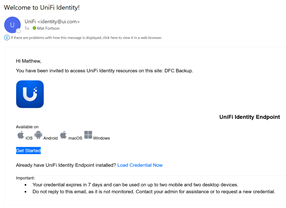
<table border="1" cellpadding="0" cellspacing="0" class="MsoTableGrid" id="bkmrk-1.%C2%A0%C2%A0%C2%A0%C2%A0%C2%A0%C2%A0-open-the-em" style="border-collapse: collapse; border: none; mso-border-alt: solid windowtext .5pt; mso-yfti-tbllook: 1184; mso-padding-alt: 0in 5.4pt 0in 5.4pt;"><tbody><tr style="mso-yfti-irow: 0; mso-yfti-firstrow: yes;"><td style="width: 219.0pt; border: solid windowtext 1.0pt; mso-border-alt: solid windowtext .5pt; padding: 0in 5.4pt 0in 5.4pt;" valign="top" width="292"><span style="mso-fareast-font-family: Calibri; mso-bidi-font-family: Calibri; font-weight: normal;"><span style="mso-list: Ignore;">1.<span style="font: 7.0pt 'Times New Roman';"> </span></span></span><span style="font-weight: normal;">Open the email from identity@ui.com.</span>

<span style="font-weight: normal;"> </span>

<span style="font-weight: normal;">Click the <span style="color: #c00000;">Get Started </span>option.</span>

</td><td style="width: 248.5pt; border: solid windowtext 1.0pt; border-left: none; mso-border-left-alt: solid windowtext .5pt; mso-border-alt: solid windowtext .5pt; padding: 0in 5.4pt 0in 5.4pt;" width="331"><span style="mso-ignore: vglayout; position: absolute; z-index: 251699200; left: 0px; margin-left: 23px; margin-top: 139px; width: 41px; height: 24px;">  
</span><span style="mso-no-proof: yes;">![](https://kb.callinsite.com/uploads/images/gallery/2025-09/embedded-image-fqqecp8q.png)</span>

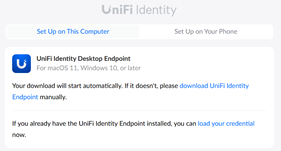
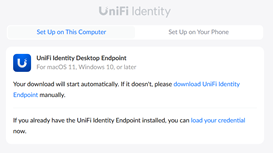
</td></tr><tr style="mso-yfti-irow: 1;"><td style="width: 219.0pt; border: solid windowtext 1.0pt; border-top: none; mso-border-top-alt: solid windowtext .5pt; mso-border-alt: solid windowtext .5pt; padding: 0in 5.4pt 0in 5.4pt;" valign="top" width="292"><span style="mso-fareast-font-family: Calibri; mso-bidi-font-family: Calibri; font-weight: normal;"><span style="mso-list: Ignore;">2.<span style="font: 7.0pt 'Times New Roman';"> </span></span></span><span style="font-weight: normal;">The download should automatically start for UniFi Identity Desktop Endpoint.   
  
</span>

<span style="font-weight: normal;">If it does not, select the “<span style="color: #c00000;">download UniFi Identity Endpoint</span>” option. </span>

<span style="font-weight: normal;"> </span>

</td><td style="width: 248.5pt; border-top: none; border-left: none; border-bottom: solid windowtext 1.0pt; border-right: solid windowtext 1.0pt; mso-border-top-alt: solid windowtext .5pt; mso-border-left-alt: solid windowtext .5pt; mso-border-alt: solid windowtext .5pt; padding: 0in 5.4pt 0in 5.4pt;" width="331"><span style="mso-ignore: vglayout; position: absolute; z-index: 251700224; left: 0px; margin-left: 191px; margin-top: 76px; width: 81px; height: 19px;">  
</span><span style="mso-no-proof: yes;">![A screenshot of a computer error

AI-generated content may be incorrect.](https://kb.callinsite.com/uploads/images/gallery/2025-09/embedded-image-ykrmr5ph.png)</span>

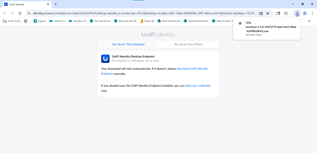
</td></tr><tr style="mso-yfti-irow: 2;"><td style="width: 219.0pt; border: solid windowtext 1.0pt; border-top: none; mso-border-top-alt: solid windowtext .5pt; mso-border-alt: solid windowtext .5pt; padding: 0in 5.4pt 0in 5.4pt;" valign="top" width="292"><span style="mso-fareast-font-family: Calibri; mso-bidi-font-family: Calibri; font-weight: normal;"><span style="mso-list: Ignore;">3.<span style="font: 7.0pt 'Times New Roman';"> </span></span></span><span style="font-weight: normal;">Once the file has downloaded, select it when it shows in the <span style="color: #c00000;">top right corner</span>. </span>

<span style="font-weight: normal;"> </span>

<span style="font-weight: normal;"> </span>

<span style="font-weight: normal;"> </span>

<span style="font-weight: normal;"> </span>

<span style="font-weight: normal;"> </span>

<span style="font-weight: normal;"> </span>

<span style="font-weight: normal;"> </span>

<span style="font-weight: normal;"> </span>

<span style="font-weight: normal;"> </span>

<span style="font-weight: normal;"> </span>

<span style="font-weight: normal;"> </span>

</td><td style="width: 248.5pt; border-top: none; border-left: none; border-bottom: solid windowtext 1.0pt; border-right: solid windowtext 1.0pt; mso-border-top-alt: solid windowtext .5pt; mso-border-left-alt: solid windowtext .5pt; mso-border-alt: solid windowtext .5pt; padding: 0in 5.4pt 0in 5.4pt;" width="331"><span style="mso-ignore: vglayout; position: absolute; z-index: 251701248; left: 0px; margin-left: 29px; margin-top: 18px; width: 200px; height: 6px;">  
</span><span style="mso-ignore: vglayout; position: absolute; z-index: 251702272; left: 0px; margin-left: 226px; margin-top: 6px; width: 81px; height: 41px;">  
</span><span style="mso-no-proof: yes;">![A screenshot of a computer

AI-generated content may be incorrect.](https://kb.callinsite.com/uploads/images/gallery/2025-09/embedded-image-o7sv25b7.png)</span>

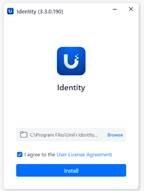
</td></tr><tr style="mso-yfti-irow: 3;"><td style="width: 219.0pt; border: solid windowtext 1.0pt; border-top: none; mso-border-top-alt: solid windowtext .5pt; mso-border-alt: solid windowtext .5pt; padding: 0in 5.4pt 0in 5.4pt;" valign="top" width="292"><span style="mso-fareast-font-family: Calibri; mso-bidi-font-family: Calibri; font-weight: normal;"><span style="mso-list: Ignore;">4.<span style="font: 7.0pt 'Times New Roman';"> </span></span></span><span style="font-weight: normal;">The application will load as shown.  
  
Select the <span style="color: #c00000;">checkbox </span>to agree to the User License Agreement, and then select <span style="color: #c00000;">Install</span>. </span>

</td><td style="width: 248.5pt; border-top: none; border-left: none; border-bottom: solid windowtext 1.0pt; border-right: solid windowtext 1.0pt; mso-border-top-alt: solid windowtext .5pt; mso-border-left-alt: solid windowtext .5pt; mso-border-alt: solid windowtext .5pt; padding: 0in 5.4pt 0in 5.4pt;" width="331"><span style="mso-ignore: vglayout; position: absolute; z-index: 251703296; left: 0px; margin-left: 96px; margin-top: 145px; width: 123px; height: 38px;">  
</span><span style="mso-no-proof: yes;">![A screenshot of a phone

AI-generated content may be incorrect.](https://kb.callinsite.com/uploads/images/gallery/2025-09/embedded-image-ufywnlvh.png)</span>

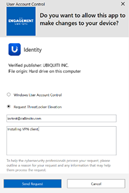
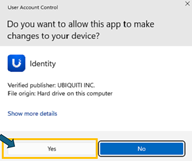
</td></tr><tr style="mso-yfti-irow: 4;"><td style="width: 219.0pt; border: solid windowtext 1.0pt; border-top: none; mso-border-top-alt: solid windowtext .5pt; mso-border-alt: solid windowtext .5pt; padding: 0in 5.4pt 0in 5.4pt;" valign="top" width="292"><span style="mso-fareast-font-family: Calibri; mso-bidi-font-family: Calibri; font-weight: normal;"><span style="mso-list: Ignore;">5.<span style="font: 7.0pt 'Times New Roman';"> </span></span></span><span style="font-weight: normal;">If you see a User Access Control box, click Yes if available. Otherwise, select the “Request ThreatLocker Elevation” bubble and submit the request. Someone from the IT Support team will be in touch within 5 minutes (within normal business hours) with further instructions. </span>

</td><td style="width: 248.5pt; border-top: none; border-left: none; border-bottom: solid windowtext 1.0pt; border-right: solid windowtext 1.0pt; mso-border-top-alt: solid windowtext .5pt; mso-border-left-alt: solid windowtext .5pt; mso-border-alt: solid windowtext .5pt; padding: 0in 5.4pt 0in 5.4pt;" width="331"><span style="mso-no-proof: yes;">![A screenshot of a computer error

AI-generated content may be incorrect.](https://kb.callinsite.com/uploads/images/gallery/2025-09/embedded-image-uq1hjcnu.png)![](https://kb.callinsite.com/uploads/images/gallery/2025-09/embedded-image-9dmaxpm1.png)</span>

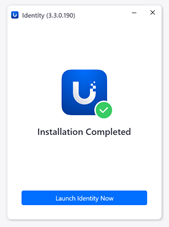
</td></tr><tr style="mso-yfti-irow: 5;"><td style="width: 219.0pt; border: solid windowtext 1.0pt; border-top: none; mso-border-top-alt: solid windowtext .5pt; mso-border-alt: solid windowtext .5pt; padding: 0in 5.4pt 0in 5.4pt;" valign="top" width="292"><span style="mso-fareast-font-family: Calibri; mso-bidi-font-family: Calibri; font-weight: normal;"><span style="mso-list: Ignore;">6.<span style="font: 7.0pt 'Times New Roman';"> </span></span></span><span style="font-weight: normal;">The application will start to finalize its installation.   
  
Once it has completed, select the <span style="color: #c00000;">Launch Identity Now </span>option. </span>

</td><td style="width: 248.5pt; border-top: none; border-left: none; border-bottom: solid windowtext 1.0pt; border-right: solid windowtext 1.0pt; mso-border-top-alt: solid windowtext .5pt; mso-border-left-alt: solid windowtext .5pt; mso-border-alt: solid windowtext .5pt; padding: 0in 5.4pt 0in 5.4pt;" width="331"><span style="mso-ignore: vglayout; position: absolute; z-index: 251704320; left: 0px; margin-left: 86px; margin-top: 183px; width: 143px; height: 32px;">  
</span><span style="mso-no-proof: yes;">![A screenshot of a phone

AI-generated content may be incorrect.](https://kb.callinsite.com/uploads/images/gallery/2025-09/embedded-image-al6iczzx.png)</span>

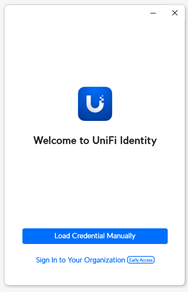
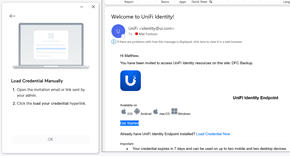
</td></tr><tr style="mso-yfti-irow: 6;"><td style="width: 219.0pt; border: solid windowtext 1.0pt; border-top: none; mso-border-top-alt: solid windowtext .5pt; mso-border-alt: solid windowtext .5pt; padding: 0in 5.4pt 0in 5.4pt;" valign="top" width="292"><span style="mso-fareast-font-family: Calibri; mso-bidi-font-family: Calibri; font-weight: normal;"><span style="mso-list: Ignore;">7.<span style="font: 7.0pt 'Times New Roman';"> </span></span></span><span style="font-weight: normal;">Select the <span style="color: #c00000;">Load Credential Manually </span>option.</span>

<span style="font-weight: normal;"> </span>

<span style="font-weight: normal;"> </span>

<span style="font-weight: normal;"> </span>

<span style="font-weight: normal;"> </span>

<span style="font-weight: normal;"> </span>

<span style="font-weight: normal;"> </span>

<span style="font-weight: normal;"> </span>

<span style="font-weight: normal;"> </span>

<span style="font-weight: normal;"> </span>

<span style="font-weight: normal;"> </span>

<span style="font-weight: normal;"> </span>

<span style="font-weight: normal;"> </span>

<span style="font-weight: normal;"> </span>

<span style="font-weight: normal;"> </span>

<span style="font-weight: normal;"> </span>

<span style="font-weight: normal;"> </span>

<span style="font-weight: normal;"> </span>

</td><td style="width: 248.5pt; border-top: none; border-left: none; border-bottom: solid windowtext 1.0pt; border-right: solid windowtext 1.0pt; mso-border-top-alt: solid windowtext .5pt; mso-border-left-alt: solid windowtext .5pt; mso-border-alt: solid windowtext .5pt; padding: 0in 5.4pt 0in 5.4pt;" width="331"><span style="mso-ignore: vglayout; position: absolute; z-index: 251705344; left: 0px; margin-left: 77px; margin-top: 219px; width: 163px; height: 33px;">  
</span><span style="mso-no-proof: yes;">![A screenshot of a phone

AI-generated content may be incorrect.](https://kb.callinsite.com/uploads/images/gallery/2025-09/embedded-image-tdlsihgx.png)</span>

</td></tr><tr style="mso-yfti-irow: 7;"><td style="width: 219.0pt; border: solid windowtext 1.0pt; border-top: none; mso-border-top-alt: solid windowtext .5pt; mso-border-alt: solid windowtext .5pt; padding: 0in 5.4pt 0in 5.4pt;" valign="top" width="292"><span style="mso-fareast-font-family: Calibri; mso-bidi-font-family: Calibri; font-weight: normal;"><span style="mso-list: Ignore;">8.<span style="font: 7.0pt 'Times New Roman';"> </span></span></span><span style="font-weight: normal;">Reopen your email from UniFi and select the <span style="color: #c00000;">Load Credential Now </span>option.   
  
After clicking this option, you will be directed back to the identity.ui.com website. </span>

</td><td style="width: 248.5pt; border-top: none; border-left: none; border-bottom: solid windowtext 1.0pt; border-right: solid windowtext 1.0pt; mso-border-top-alt: solid windowtext .5pt; mso-border-left-alt: solid windowtext .5pt; mso-border-alt: solid windowtext .5pt; padding: 0in 5.4pt 0in 5.4pt;" width="331"><span style="mso-ignore: vglayout; position: absolute; z-index: 251706368; left: 0px; margin-left: 204px; margin-top: 126px; width: 46px; height: 17px;">  
</span><span style="mso-no-proof: yes;"><span style="font-weight: normal;">![A screenshot of a computer

AI-generated content may be incorrect.](https://kb.callinsite.com/uploads/images/gallery/2025-09/embedded-image-5182svb2.png)</span></span>

</td></tr><tr style="mso-yfti-irow: 8;"><td style="width: 219.0pt; border: solid windowtext 1.0pt; border-top: none; mso-border-top-alt: solid windowtext .5pt; mso-border-alt: solid windowtext .5pt; padding: 0in 5.4pt 0in 5.4pt;" valign="top" width="292"><span style="mso-fareast-font-family: Calibri; mso-bidi-font-family: Calibri; font-weight: normal;"><span style="mso-list: Ignore;">9.<span style="font: 7.0pt 'Times New Roman';"> </span></span></span><span style="font-weight: normal;">Select the <span style="color: #c00000;">Load Your Credential </span>option to start the process. </span>

</td><td style="width: 248.5pt; border-top: none; border-left: none; border-bottom: solid windowtext 1.0pt; border-right: solid windowtext 1.0pt; mso-border-top-alt: solid windowtext .5pt; mso-border-left-alt: solid windowtext .5pt; mso-border-alt: solid windowtext .5pt; padding: 0in 5.4pt 0in 5.4pt;" width="331"><span style="mso-ignore: vglayout; position: absolute; z-index: 251707392; left: 0px; margin-left: 206px; margin-top: 111px; width: 67px; height: 17px;">  
</span><span style="mso-no-proof: yes;">![A screenshot of a computer error

AI-generated content may be incorrect.](https://kb.callinsite.com/uploads/images/gallery/2025-09/embedded-image-nbrls9t3.png)</span>

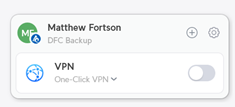
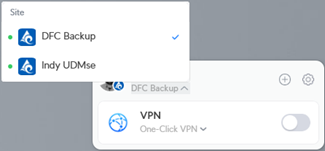
</td></tr><tr style="mso-yfti-irow: 9;"><td style="width: 219.0pt; border: solid windowtext 1.0pt; border-top: none; mso-border-top-alt: solid windowtext .5pt; mso-border-alt: solid windowtext .5pt; padding: 0in 5.4pt 0in 5.4pt;" valign="top" width="292"><span style="mso-fareast-font-family: Calibri; mso-bidi-font-family: Calibri; font-weight: normal;"><span style="mso-list: Ignore;">10.<span style="font: 7.0pt 'Times New Roman';"> </span></span></span><span style="font-weight: normal;">The VPN will now open in the bottom right corner of your screen.   
  
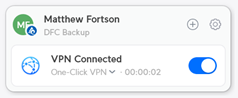
To turn the VPN on, simply <span style="color: #c00000;">click the switch</span>.   
  
You are now connected to the VPN!</span>

</td><td style="width: 248.5pt; border-top: none; border-left: none; border-bottom: solid windowtext 1.0pt; border-right: solid windowtext 1.0pt; mso-border-top-alt: solid windowtext .5pt; mso-border-left-alt: solid windowtext .5pt; mso-border-alt: solid windowtext .5pt; padding: 0in 5.4pt 0in 5.4pt;" width="331"><span style="mso-ignore: vglayout; position: absolute; z-index: 251709440; left: 0px; margin-left: 220px; margin-top: 58px; width: 43px; height: 29px;">  
</span><span style="mso-no-proof: yes;">![A screenshot of a computer

AI-generated content may be incorrect.](https://kb.callinsite.com/uploads/images/gallery/2025-09/embedded-image-wdndc1la.png)</span>

<span style="mso-no-proof: yes;">![A screenshot of a computer

AI-generated content may be incorrect.](https://kb.callinsite.com/uploads/images/gallery/2025-09/embedded-image-dcm5jfms.png)</span>

</td></tr><tr style="mso-yfti-irow: 10; mso-yfti-lastrow: yes;"><td style="width: 219.0pt; border: solid windowtext 1.0pt; border-top: none; mso-border-top-alt: solid windowtext .5pt; mso-border-alt: solid windowtext .5pt; padding: 0in 5.4pt 0in 5.4pt;" valign="top" width="292"><span style="mso-fareast-font-family: Calibri; mso-bidi-font-family: Calibri; font-weight: normal;"><span style="mso-list: Ignore;">11.<span style="font: 7.0pt 'Times New Roman';"> </span></span></span><span style="font-weight: normal;">Repeat steps 8-10 with the second Welcome email to add the alternative VPN site. </span>

</td><td style="width: 248.5pt; border-top: none; border-left: none; border-bottom: solid windowtext 1.0pt; border-right: solid windowtext 1.0pt; mso-border-top-alt: solid windowtext .5pt; mso-border-left-alt: solid windowtext .5pt; mso-border-alt: solid windowtext .5pt; padding: 0in 5.4pt 0in 5.4pt;" width="331"><span style="mso-no-proof: yes;">![](https://kb.callinsite.com/uploads/images/gallery/2025-09/embedded-image-mee0zfgu.png)</span>

</td></tr></tbody></table>